
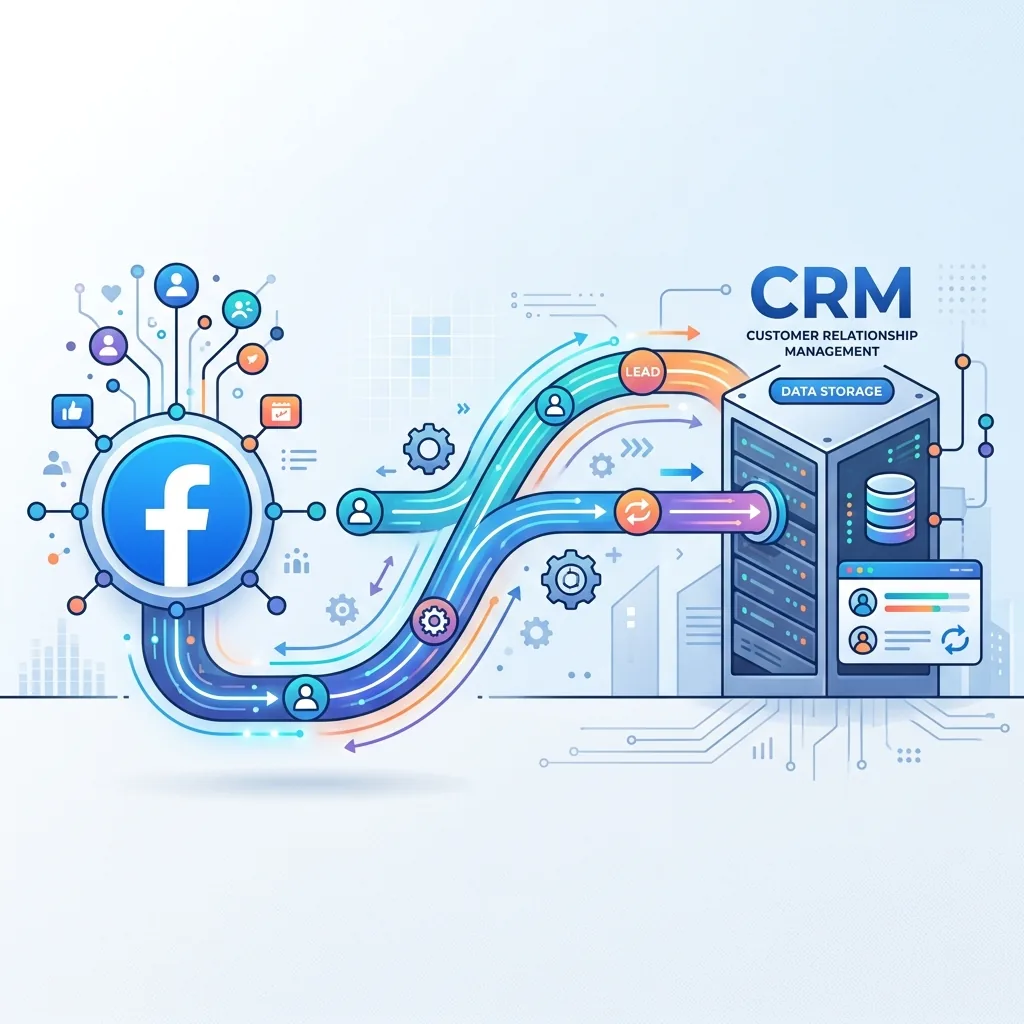
TL;DR — Waiting for scheduled API polling or exporting CSVs from Facebook Ads Manager causes lead leakage. The fastest, most cost-effective way to capture leads is by linking Facebook Lead Ads directly to your CRM using n8n. By configuring Meta Webhooks to send lead payloads instantly, you can automatically create contacts, log source tags, and notify your sales team in under 30 minutes.
The Polling Trap vs. Instant Webhooks
Many businesses use tools that poll Facebook for new leads every 15 minutes. In the sales world, 15 minutes is the difference between a closed deal and a cold prospect. A lead who has to wait for a manual callback is already browsing a competitor’s site.
Using instant webhooks instead of scheduled checks is the developer-approved way to bypass this delay. Webhooks push the lead data to your server the exact millisecond the user hits “Submit” on the Facebook lead form. For a broader view on building an end-to-end sales engine, read our SMB Lead-to-Revenue Playbook. If you need help building this, check out our lead-to-revenue automation.
The Integration Pipeline
Here is the data structure mapping from the Facebook raw payload to your CRM (e.g., Zoho or GoHighLevel):
| Facebook Lead Payload Field | Intermediate n8n Node | CRM Contact Field |
|---|---|---|
field_data.email | JSON Parser | Primary Email |
field_data.phone_number | Regex Formatter (E.164) | Mobile Phone |
field_data.full_name | String Splitter | First Name / Last Name |
id (Lead ID) | Passthrough | FB Lead ID Reference |
form_id | Metadata Map | Lead Source (UTM Campaign) |
Step-by-Step Configuration Guide
Here is exactly how to set up this pipeline using cloud n8n or your own server (see our guide on self-hosting n8n):
1. Set Up the n8n Facebook Lead Ads Trigger
n8n features a native Facebook Lead Ads Trigger node.
- Add the Facebook Lead Ads Trigger node to your n8n canvas.
- Create a credential using your Meta Developer Account. Ensure you select the
ads_managementandleads_retrievalscopes during OAuth configuration. - Select your Facebook Page and the specific Lead Form from the node dropdowns.
2. Standardize Phone Formats (E.164 conversion)
Facebook users enter phone numbers in different formats (with spaces, country codes, or dashes). Before writing to the CRM, standardize the phone number to the E.164 format (e.g., +919876543210) using a Code node in n8n with this simple JavaScript snippet:
const rawPhone = $input.item.json.field_data.phone_number;
// Remove spaces, dashes, and parentheses
const cleanPhone = rawPhone.replace(/[\s\-\(\)]/g, "");
// Ensure country code exists (defaulting to India +91 if missing)
const formattedPhone = cleanPhone.startsWith('+') ? cleanPhone : `+91${cleanPhone.replace(/^0/, '')}`;
return { json: { ...$input.item.json, formattedPhone } };
3. CRM Create or Update Logic
Do not just insert leads blindly; duplicate records destroy CRM usability.
- Add your CRM node (e.g., Zoho CRM or GoHighLevel).
- Set the action to Upsert (Update or Create).
- Search by the standardized email address or phone number.
- If a match is found, append a new deal in the pipeline. If no match is found, create a new contact and associate the new deal with it.
FAQ
Do I need a Meta Developer App to set this up?
Yes. To retrieve live leads, Meta requires you to configure a Facebook App in their developer console and subscribe to the leads webhook event under the Page subscriptions. The native n8n connector handles the API handshake, but the App configuration is required.
How do I handle test leads?
Meta provides a Lead Ads Testing Tool that allows you to generate mock leads for any form you manage. You can use this tool to fire test webhooks into your n8n trigger node to verify the pipeline logic without running live ads.